Support
CS Colect Connector
Colect requires some basic settings. Colect has a Preorder environment and a Reorder environment, which are separated. Colect works with statuses for customers, salespersons
and items to identify whether products should be available in the Preorder and/or Reorder environment and whether customers have access to eitherone or both environments in Colect.
In addition, Colect uses its own language codes to display texts on the Colect website for customers.
Colect Language codes
Translations of items, brands, collections, attributes, etc. in different languages are included in the export to Colect, so that the Colect sales app can be displayed in different languages.
Colect uses its own language codes for this purpose. The default language codes in Business Central can be provided with a language code that Colect uses, so that the translation is displayed in the correct language:
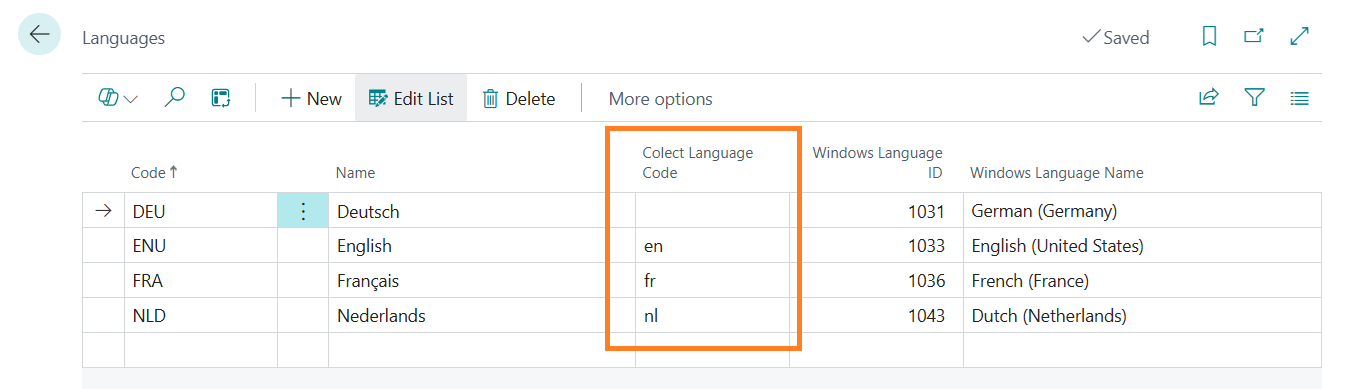
Please contact your Colect consultant for the available language codes, as the Colect app needs to be adapted accordingly.
Colect Setup
The main settings for CS Colect Connector app are stored in the Colect Setup.
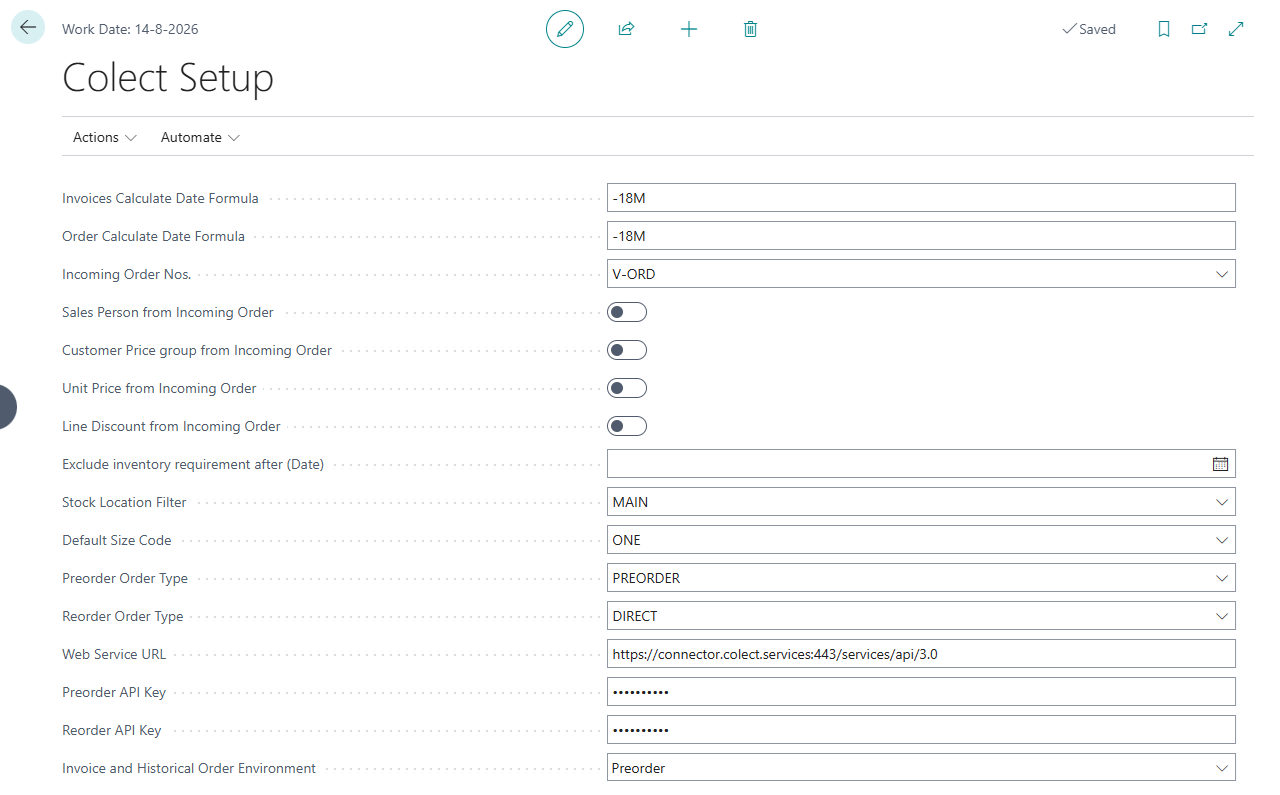
Invoices Calculate Date Formula:
Specify a date formula from which sales invoices should be sent to Colect. The formula -18M indicates that all invoices and credit memos from the past 18 months before the current date will be available in Colect.
Order Calculate Date Formula:
Specify a date formula from which customer orders should be sent to Colect. The formula -18M indicates that all orders and shipments from the past 18 months before the current date will be available in Colect.
Incoming Order Nos.:
Specifies the number series that will be used to assign order numbers to processed sales orders, imported from Colect. The number series can be selected from the standard Business Central No.
Series list.
Salesperson from incoming order:
If this switch is on, the name of the logged-in salesperson on the Colect order is transferred to the sales order in Business Central. If this switch is off, the name of the salesperson from the
customer card is transferred to the sales order.
Customer Price Group from incoming order:
If this switch is on, the customer price group on the Colect order is transferred to the sales order in Business Central. If this switch is off, the customer price group from the customer card is transferred to the sales order.
Unit Price from incoming order:
If this switch is on, the unit prices in the Colect order are transferred to the sales order in Business Central. If this switch is off, the unit prices in Business Central are calculated based on the price conditions for the selected customer.
Line Discount from incoming order:
If this switch is on, the line discounts in the Colect order are transferred to the sales order in Business Central. If this switch is off, the line discounts in Business Central are calculated based
on the discount conditions for the selected customer.
Exclude inventory requirement after (Date):
Exclude the required items from sales orders with a shipment date after this date when the available inventory is calculated for Colect. This means that the assigned inventory of these orders in the future can be reassigned to sales orders that need to be shipped earlier.
Note:
If this field is used, it should regularly be updated. The common use is to exclude assigned inventory to future preorders.
Stock location filter:
Available inventory for sales orders is calculated for the locations within a stock location filter. The locations to be included are determined in this filter setting.
Multiple locations can be placed in the filter by using a pipe character.
Default Size Code:
Colect requires a size code for every item. If an item does not have a size code, a default size code can be used, e.g. ‘One Size’ or ‘None’.
Preorder Order Type:
Colect orders from the Preorder environment will be processed with an order type of CS Fashion Central if this is setup in this field.
Reorder Order Type:
Colect orders from the Reorder environment will be processed with an order type of CS Fashion Central if this is setup in this field.
Web Service URL:
URL of the webservice of Colect that is called for interchange messages. The URL is provided by Colect.
Preorder API Key:
API key to access the Colect Preorder environment. This key is provided by Colect.
Reorder API Key:
API key to access the Colect Reorder environment. This key is provided by Colect.
Invoice and Historical order environment:
Invoices and historical orders need to be sent to 1 Colect environment only. If only 1 of these environments is used, select that environment in this setting. If both environments are applicable, this setting determines the API settings for sending invoices and orders. The orders and invoices will be available to customers in both Colect environments.
Colect Status
The Colect Status base table shows the different statuses that Colect works with. The status identifies the environments in Colect that customers and sales agents have access to. And the environments in Colect that items are displayed in.
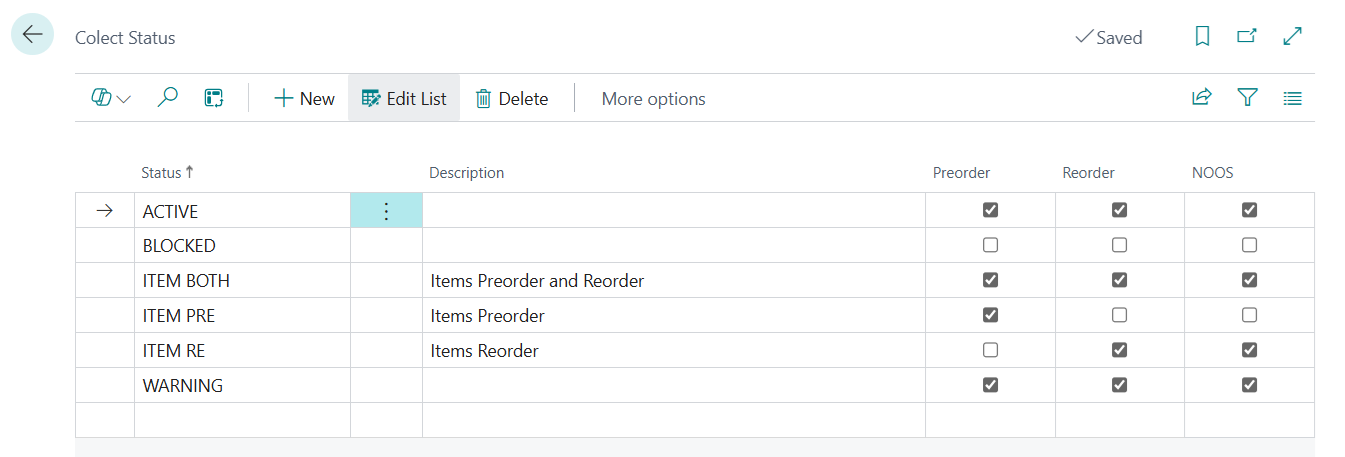
A status is assigned to customers, salespersons and items. Only customers and salespersons with a Colect Status will have access to Colect (even if that is a blocked status).
Sale Texts
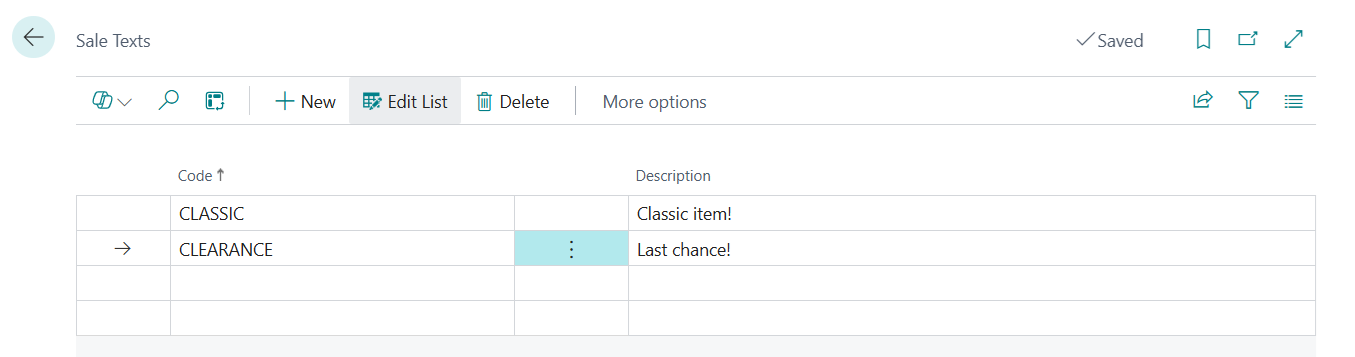
Texts can be selected on item pages that are displayed in the Colect app with an item to draw extra attention to it. These are fixed texts, which can be defined in the Sale Text list.
Note:
The texts in this picture are examples. Any text that you want to be displayed on items in the Colect app can be defined.
Matching set groups
Product relations can be defined to display both successors of discontinued items and matching items in the basket. Matching items are categorized in matching groups. The matching groups are
maintained on the page Matching Set Groups:
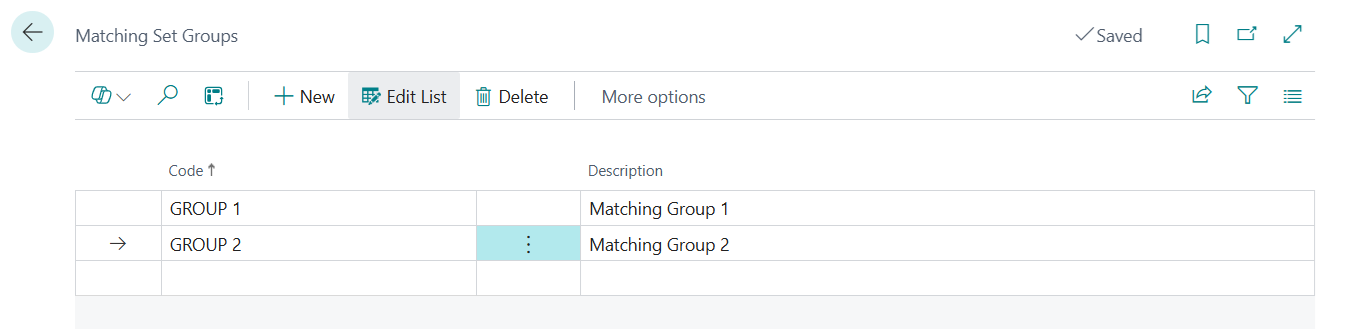
Contact your Colect consultant how to configure and maintain the matching sets groups that are needed for related products.
Customers in Colect
To make customer data visible in Colect, a Colect Status must be assigned on the customer card. The Colect Status gives the customer access to the Preorder and/or Reorder environment, based on the settings of the Colect Status:
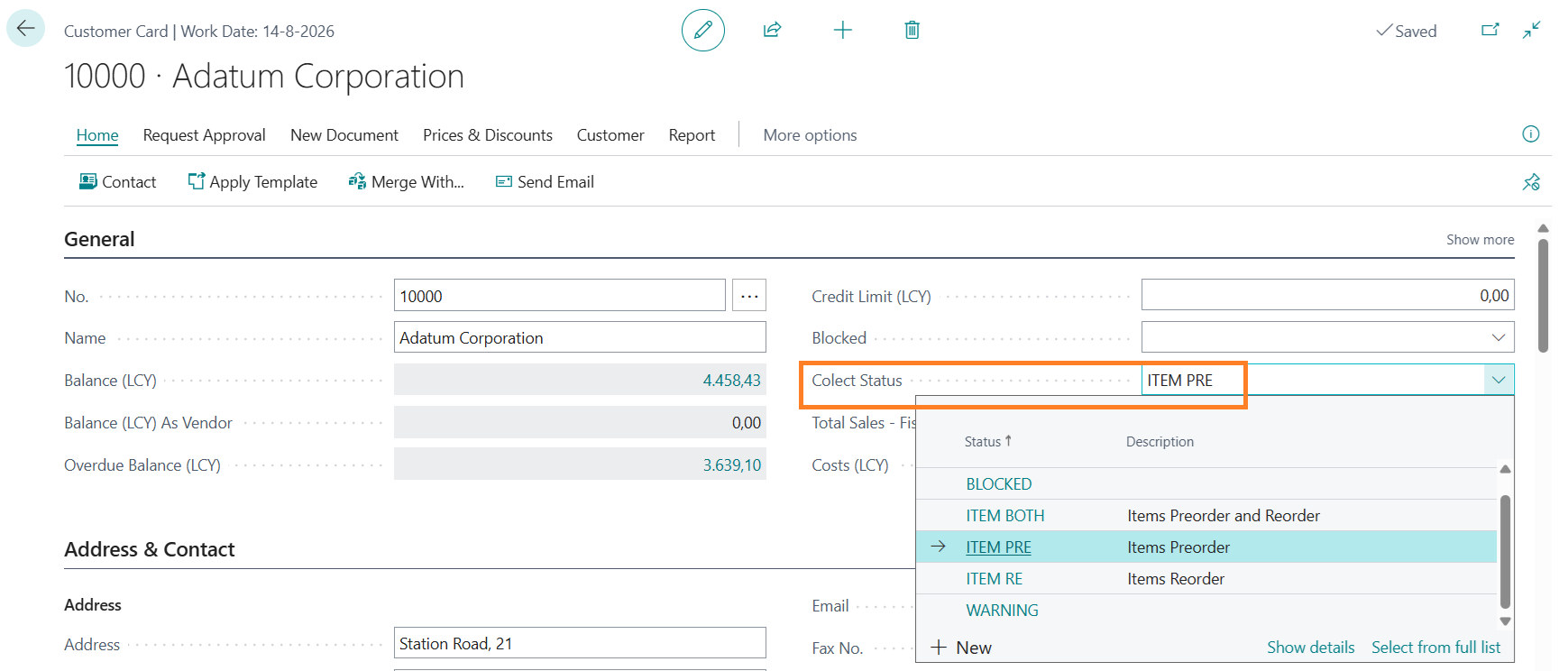
Only customers with a Colect Status are sent to Colect, even if the status does not grant access to either both Colect environments.
Note:
Blocking customers for sales orders, or for posting shipments and invoices does NOT affect the Colect Status. These customers will be visible in Colect if they have a Colect Status.
Salespersons in Colect
Salespersons who need access to Colect must have a Colect Status on the Salesperson card. The Colect Status gives the salesperson access to the Preorder and/or Reorder environment, based
on the settings of the Colect Status:
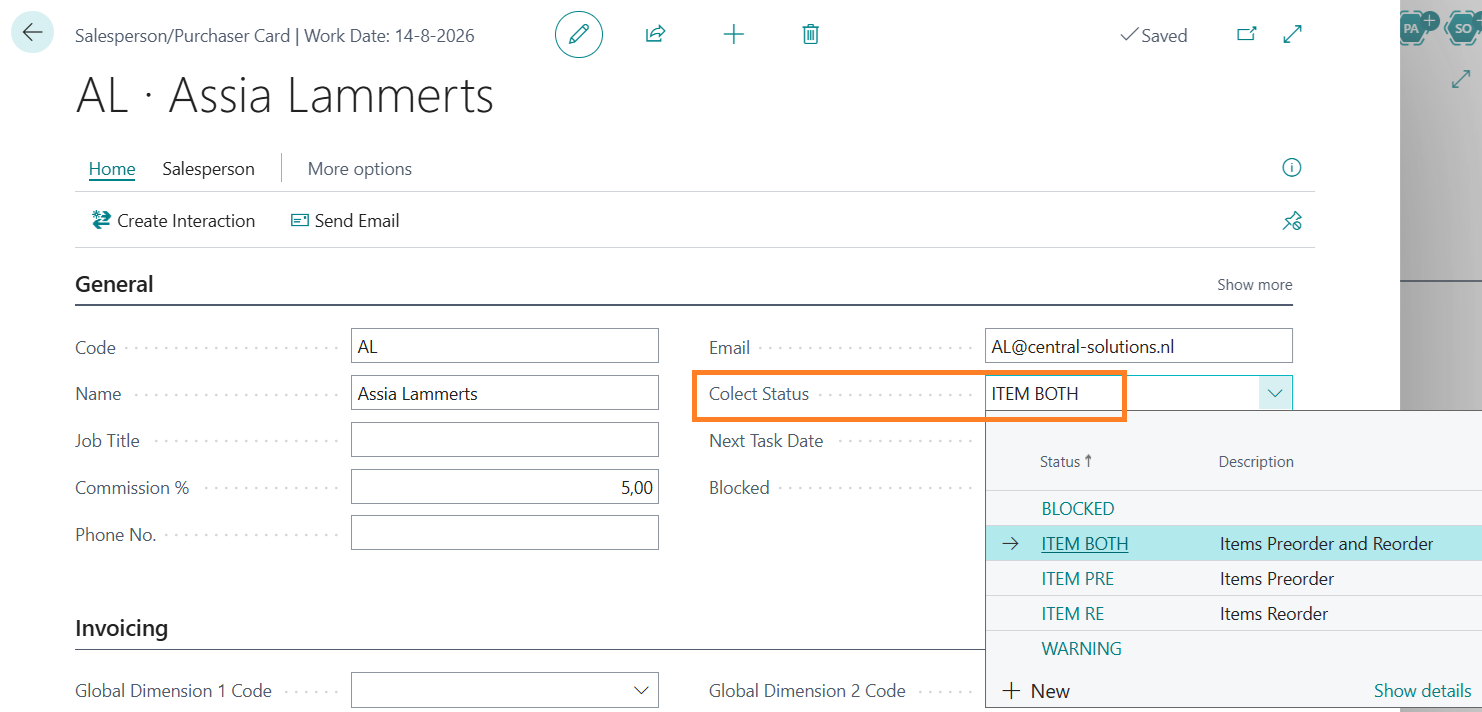
Only salespersons with a Colect Status are sent to Colect, even if that status indicates that access to either both Colect environments is not granted (Blocked).
Items
A new tab Colect has been added to the Item card page, with specific information for Colect:
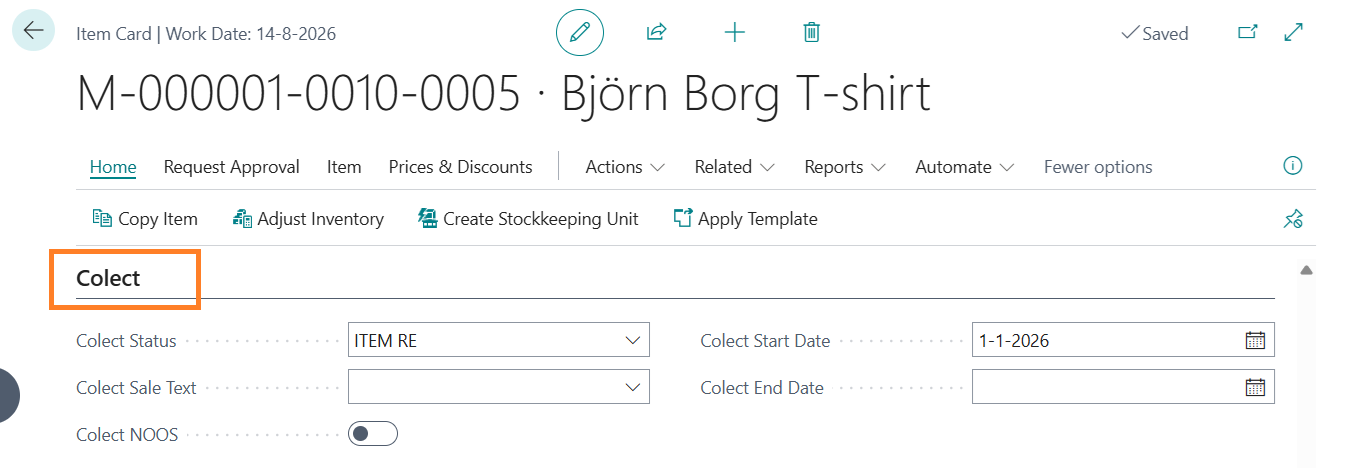
Colect Status:
The Status indicates the Colect environments where the item must be available for ordering.
Colect Sale text:
The Sale Text will be displayed as an ‘overlay’ on the item in the Colect environment. It can be selected from the base table with Sale texts.
Colect NOOS:
NOOS means Never Out of Stock. This switch indicates to Colect whether the item can still be ordered if there is no more available stock of an item (This switch must be on in that case).
Colect Start Date:
Date from which the item will be visible to users in Colect.
Colect End Date:
Last date that the item will be visible to users in Colect.
The fields on this tab are not mandatory. The parameters can also be set in the Colect backoffice.
Note:
Depending on the settings in CS Fashion Central Premium, variants and/or items are created per model, per color and per size. If color and/or size are defined on item level, these item properties
in Colect are only inherited from the first found color of a model.
The Colect status on item pages can also be maintained from the Model page and the Model Colors page (CS Fashion Central Premium). The status will be inherited to the items with that
model number and color code.
Item Attributes
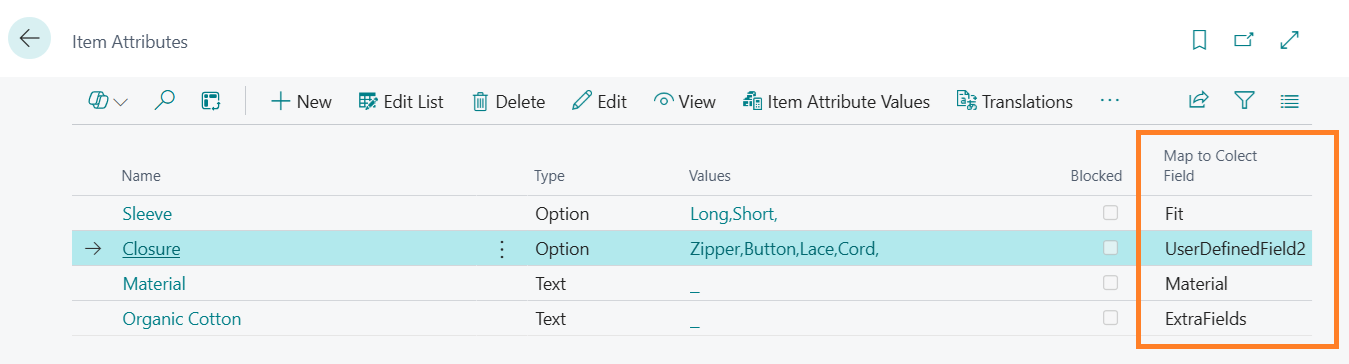
Item Attributes can be indicated whether the attributes should be visible for articles in Colect.
Attributes for which the Column Map to Colect Field is defined will be translated to Colect attributes of articles. This column defines the mapping of attributes in Business Central to Colect
attributes.
There can be multiple Extra fields in Colect. The name of the attribute will either be mapped to a fixed value in Colect (Fit, UserDefinedField,Material) or to extra fields in Colect. The attribute name will be mapped to the name of the extra fields.
Please contact Colect for the available language codes, as the Colect app needs to be adapted accordingly.
Product Relations
Product Relations are either matching items for specific items or models, or successors for discontinuing items that are running out of stock.
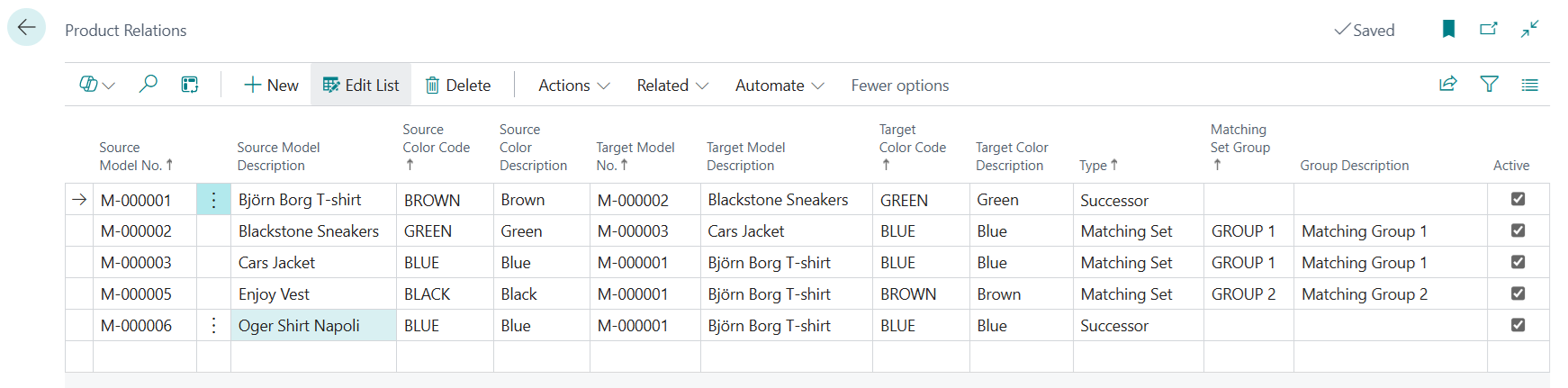
Source Model No.:
The model number that a matching item or successor is related to.
Source Color Code:
The color of the model that a matching item or successor is related to.
Target Model No.:
The related model number for a successor or matching item.
Target Color Code:
The related color of a model for a successor or matching item.
Type:
Indicates if the relation is for a successor or matching set.
Matching Set Group:
A Group code for matching set items. This field is mandatory for matching sets, but must be left blank for successors.
Active:
Indicates if the product relation is activated in Colect or not.
Remark:
The descriptions are displayed from the corresponding codes or groups.
Contact your Colect consultant to define the different matching set groups and how to use them in Colect.
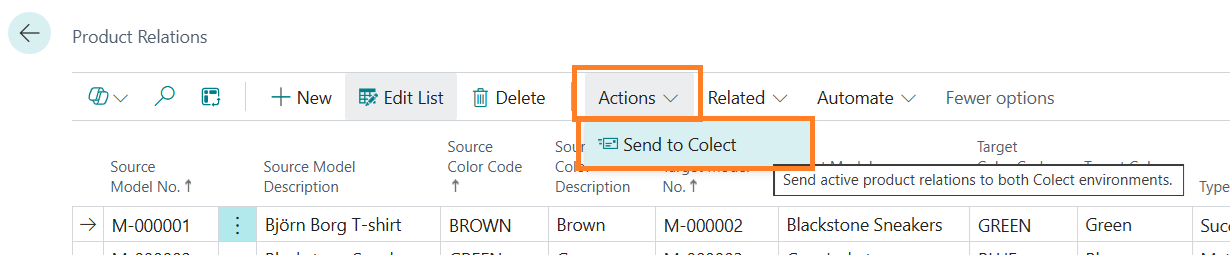
Product Relations can be sent to Colect immediately after modifying the relations by using the action menu button Send to Colect:
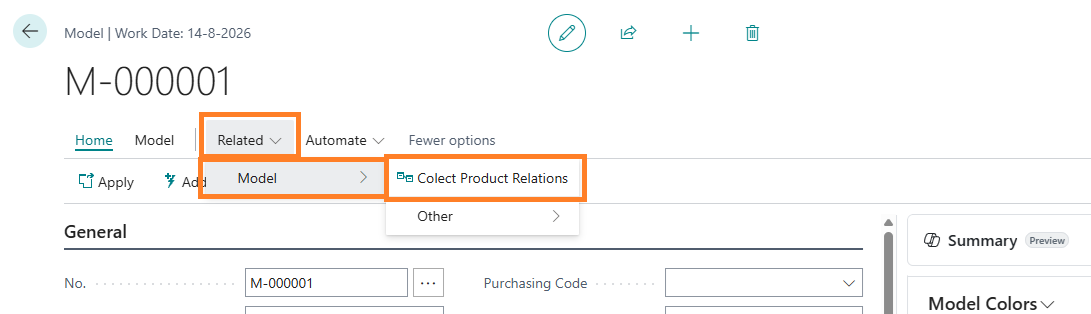
The product relations can also be accessed from the model card (CS Fashion Central Premium):
Central Solutions
Strijdakker 17 | 5673 TN | Nuenen (NL)
Chamber of Commerce 75296497
VAT ID NL860227790B01
support@central-solutions.nl
+31 85 401 73 40