Support
CS Transfer Management
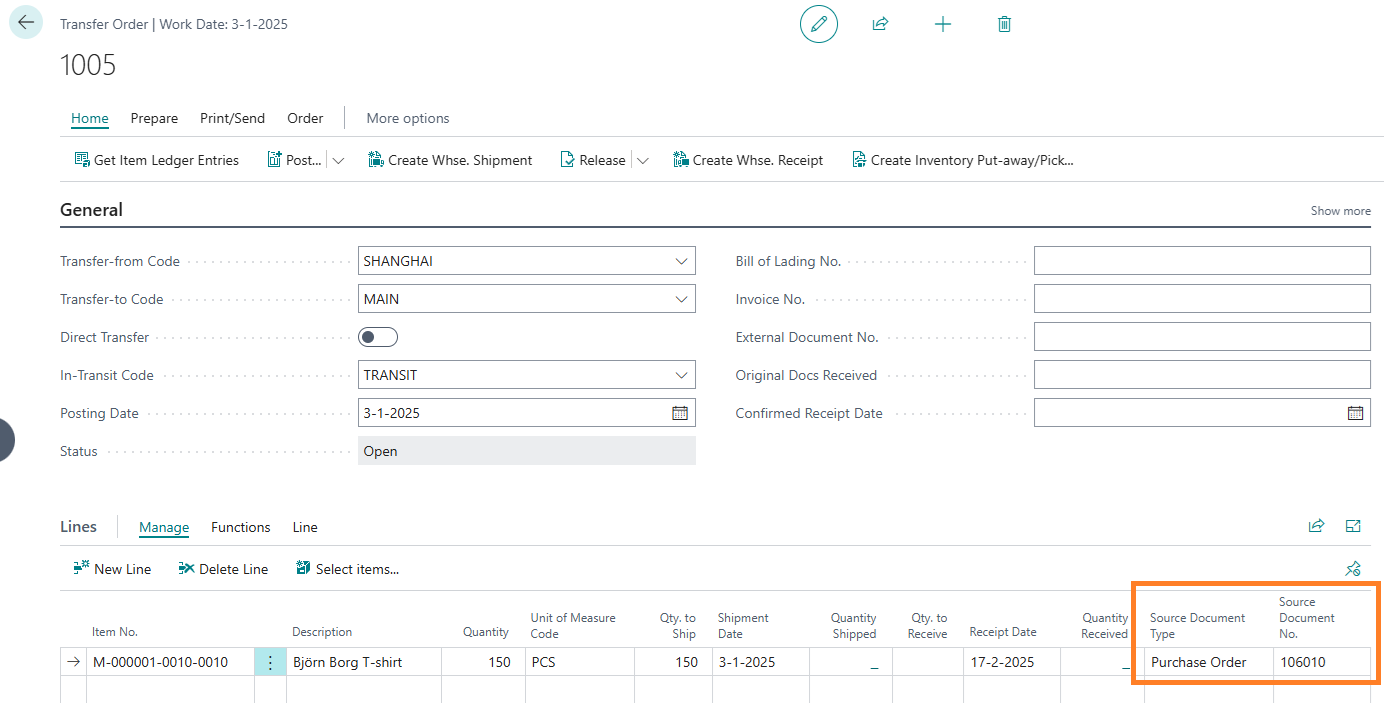
If a Transfer Order No. has been selected on the purchase order line or assembly order, the received items will be added to the Transfer Order automatically, stating the Source Document Type and Source Document No. where it originates from:
If no Transfer Order No. was selected on the purchase order line before posting, the received items can be added to an existing Transfer Order or a created one.
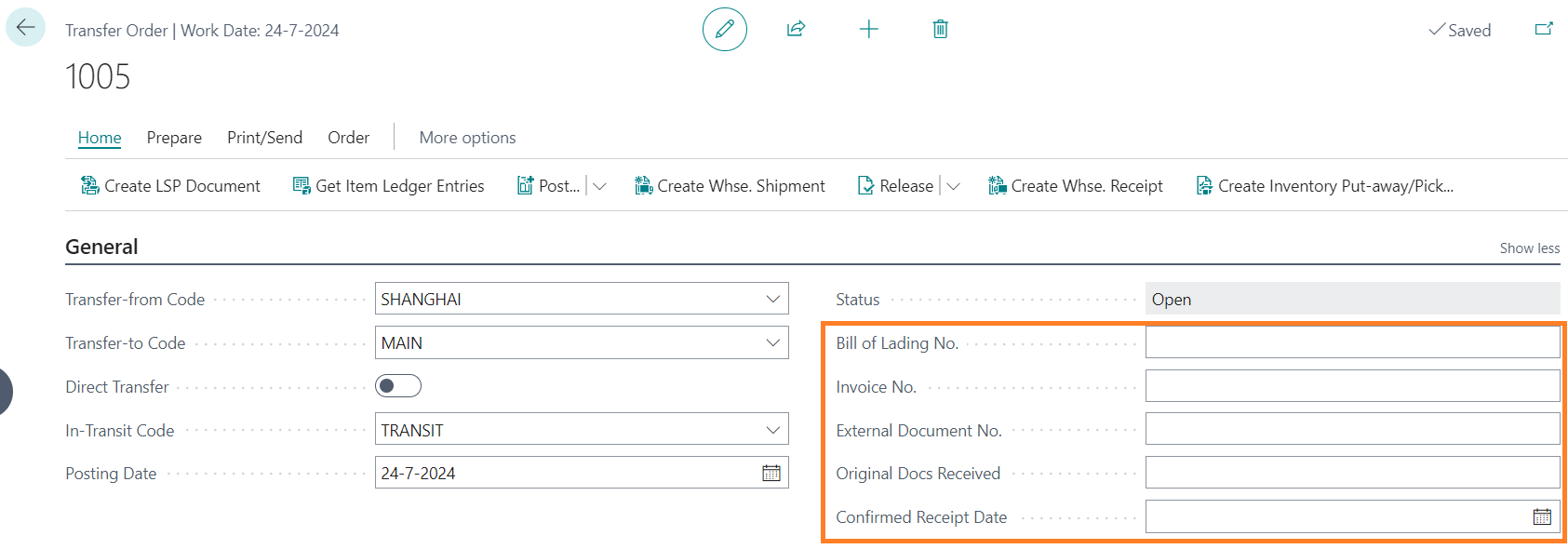
Additional fields on the Transfer order are available:

The In-Transit code will assign the fields from the Transfer route to the Transfer header:


The Receipt Date will be calculated from the Shipment Date added with the Shipping Time.
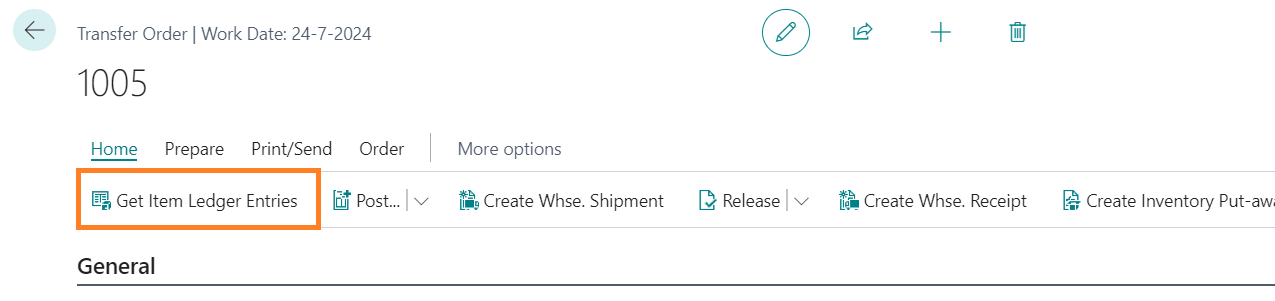
To add available items to the Transfer Order, choose Action button Get Item Ledger Entries from the page menu:
Select all the entries that need to be transferred to the destination location. The original Source
Document No. is visible in the Item ledger Entries and in the Transfer order lines. Entries from different purchase orders, positive adjustments or assembly outputs may be combined in 1
Transfer order / Container:

CS Transfer Management will create Transfer lines for each selected Item Ledger Entry. The Original Purchase Order No. and Original Purchase Receipt No. will be visible in the Transfer lines:

The Transfer order can be processed within standard Microsoft 365 Business Central.
Note:
The Transfer Receipt Date will also be visible on the purchase order line.
On Transfer Orders, a Factbox is available with Transfer Line Details, similar to the factbox of the Sales Order lines:
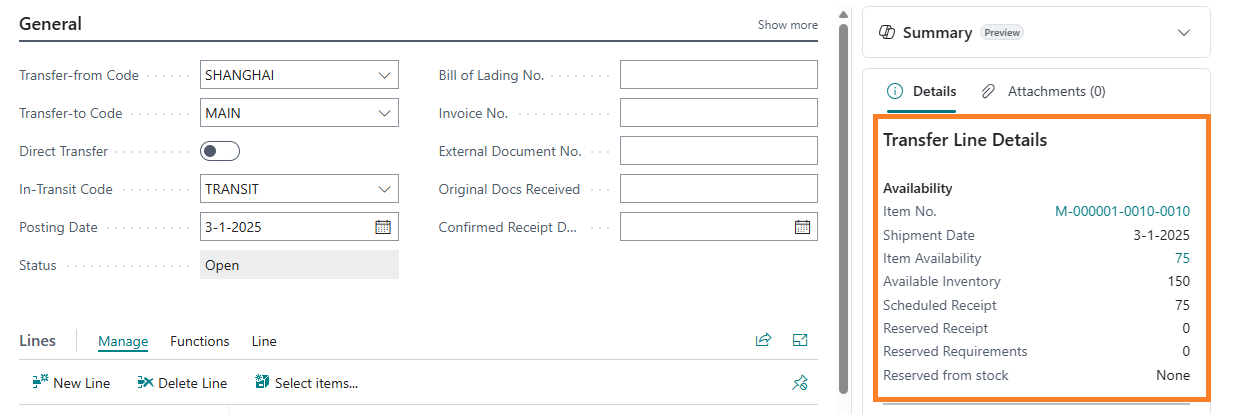
The availability of the items is displayed for the Transfer-From Code.
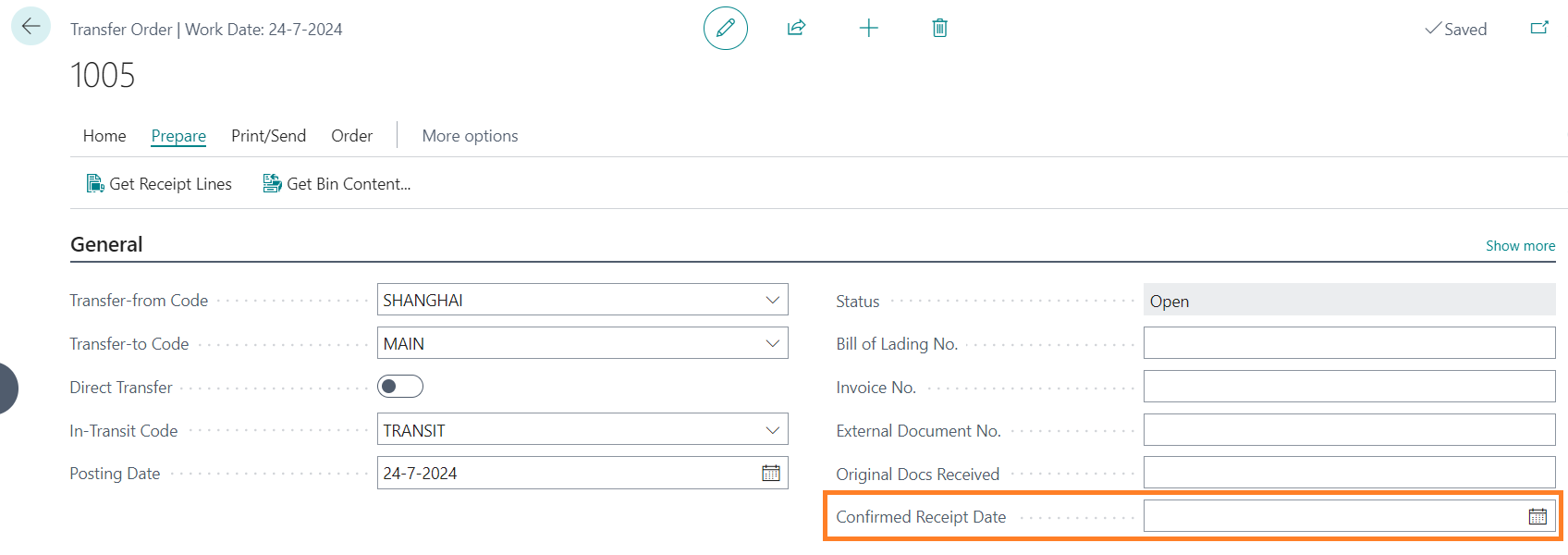
To change the Receipt Date of the transfer lines, the Confirmed Receipt Date can be entered. This date will overrule the planned receipt date from the Shipment tab on the transfer lines. The original shipment date on the Shipment tab will not be changed.
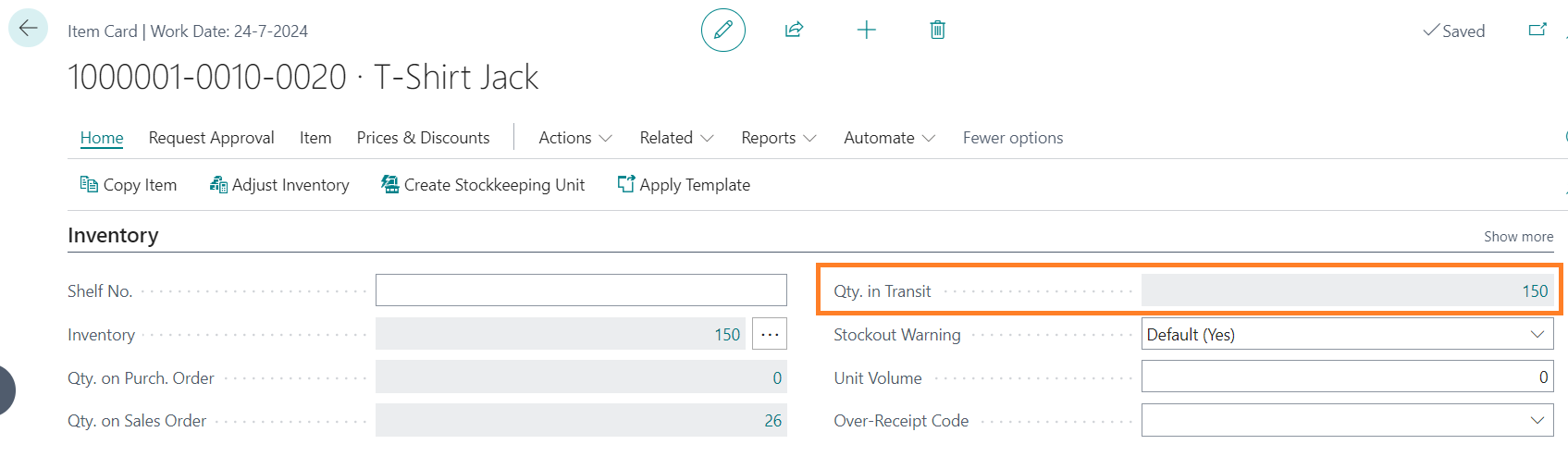
On the Item card page, the Quantity in Transit is visible:
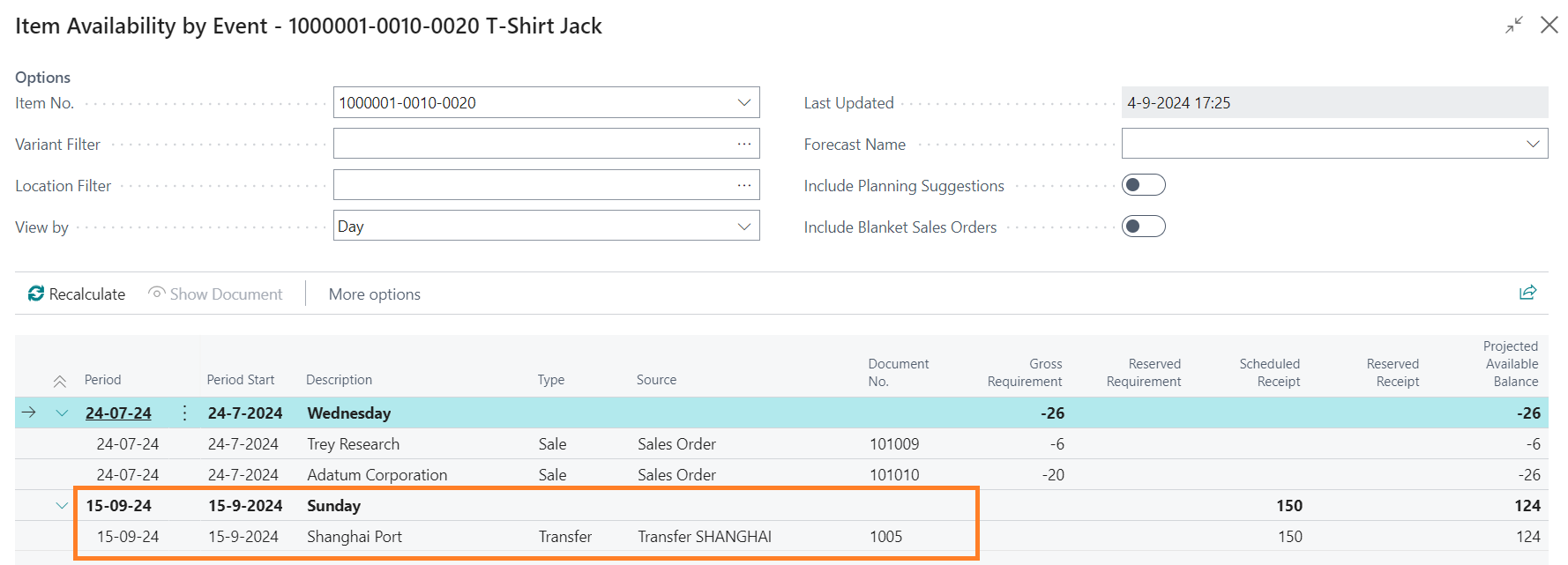
The expected Receipt date of the Transfer order line is shown in the Item Availability by Event page:
Central Solutions
Strijdakker 17 | 5673 TN | Nuenen (NL)
Chamber of Commerce 75296497
VAT ID NL860227790B01
support@central-solutions.nl
+31 85 401 73 40